Released 07/26/2021
For Preparedness Grants through Wisconsin Emergency Management (WEM)
Table of Contents
- Overview
- How to Access the Fiscal Report
- Complete the Fiscal Report and “Save as Draft”
- Step 1. For “Final Report”, use the drop down box to indicate if report is Final
- Step 2. For “Financial Information”, enter the total amount requested under “Current Period”
- Step 3. For “Estimates of Amount of Funds Required Next Quarter”, leave Blank
- Step 4. Under “Budget Categories”, provide a break-down of the requested amount by category
- Step 5. “Project Income”
- Step 6. “Remarks”
- Step 7. “Attachments”, upload the following required documents when requesting reimbursement
- Step 8. Click “Save as Draft”
- Step 9. Proceed to How to Submit your Fiscal Report for next steps
- How to Submit your Fiscal Report
Overview
General Overview
Currently Wisconsin Emergency Management’s (WEM) grants are administered on a reimbursement basis only. Reimbursement basis for a grant means that prior to the grantee receiving payment on the grant, they must have first paid for all items under the grant to the provider.
The Fiscal Report in Egrants is where you will submit your request for reimbursement. The frequency in which a Fiscal Report is required is determined at the time of your award and can be found in your Award document or in Egrants under Monitoring.
Requirements and Criteria for Reimbursements
The following criteria must be met and verified before the Reimbursement Request is approved:
- Must be approved in Egrants through an Application or Modification.
- Must meet the requirements outlined in the Notice of Funding Opportunity (NOFO).
- Must adhere to State and Federal regulations as applicable.
- All Program Reports must be up to date and approved by the WEM Program Manager.
- All Special Conditions specific to your grant must be cleared by the WEM Program Manager.
- Expenses must be incurred and received within the performance period, unless otherwise stated in the NOFO.
- May not include tax, unless otherwise stated in the NOFO.
- Expenses must be actual costs incurred and paid.
- The following documentation must be submitted and verified:
- A Fiscal Report signed and certified by both the Program and Fiscal Contacts listed in Egrants.
- An itemized receipt or invoice. It must include item, quantity, unit cost and total cost. If it is an invoice, it should say “Invoice”; Shipment Manifests and Order Confirmations are not acceptable substitutes.
- Additional documentation as needed per the NOFO or at the request of WEM. This includes any additional documentation that is required in order to validate the expense as allowable within the grant requirements.
How to Access the Fiscal Report
Step 1. Access your grant in Egrants (See Egrants User Guide for additional instructions)
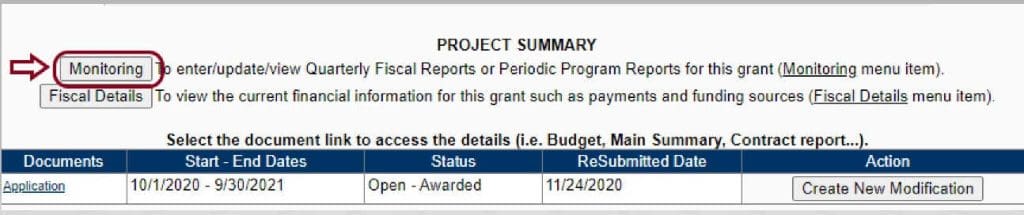
Step 2. Access your reports by clicking on “Monitoring”
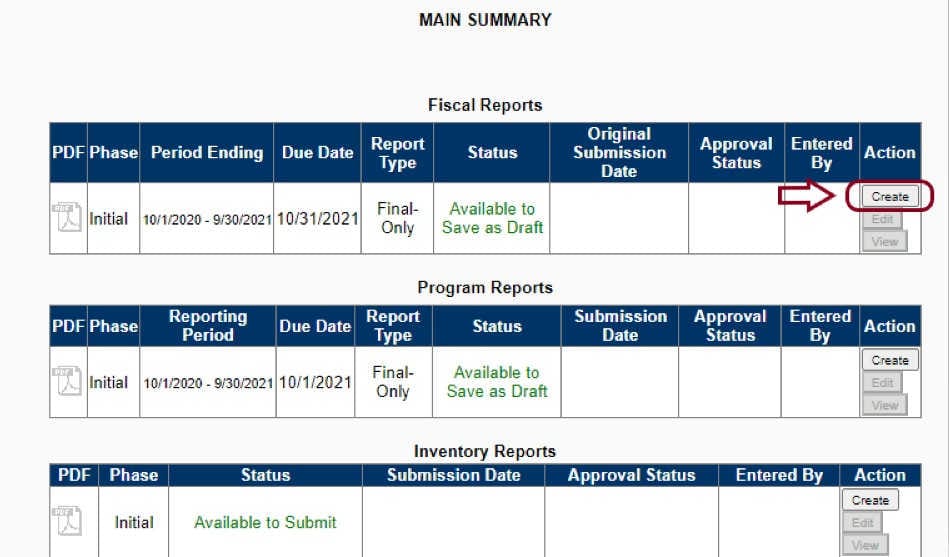
Step 3. Under Fiscal Reports, click “Create”
Complete the Fiscal Report and “Save as Draft”
Step 1. For “Final Report”, use the drop down box to indicate if report is Final
- Select “Yes” to indicate this is your final report and you are ready for the grant to be closed.
- Select “No” if you’re submitting a Monthly or Quarterly report and are not seeking an early closeout.

Step 2. For “Financial Information”, enter the total amount requested under “Current Period”

Step 3. For “Estimates of Amount of Funds Required Next Quarter”, leave Blank

Step 4. Under “Budget Categories”, provide a break-down of the requested amount by category
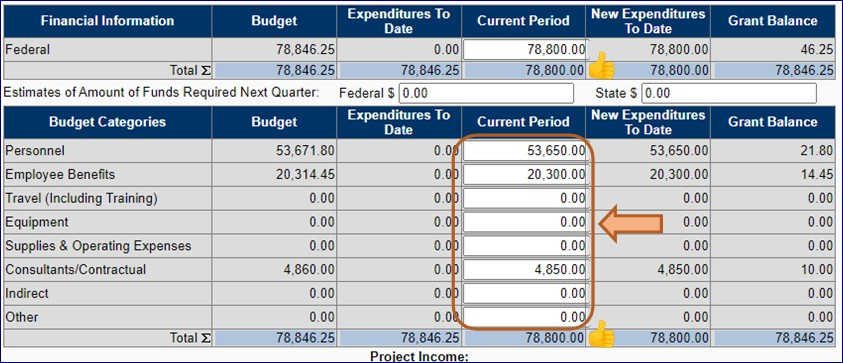
Step 4.1 Verify total matches the amount entered in Step 2
Step 5. “Project Income”
Project or program Income represents revenues or income your agency received as a result of this project. This may be, but is not limited to: fees, donations, rebates, misc. credits, etc.
IMPORTANT: Project Income should not be collected on your grants and avoided at every possible opportunity. If your agency has collected an income and/or revenue as a result of your grant, please reach out to your WEM Program Manager for further information before submitting your Fiscal Report and request for reimbursement.

Step 6. “Remarks”
This section is the opportunity to communicate with the WEM Fiscal Grants Specialist that will be reviewing and approving your report and/or reimbursement. You will want to enter any information that may help explain and/or justify your fiscal report and the supporting documentation.

Step 7. “Attachments”, upload the required documents when requesting reimbursement
This is the most important section when requesting reimbursement on your grant. The following items must be uploaded in order to validate and approve your request for payment.
Step 7.1 Detailed and itemized invoices/receipts for all expenses. It must include item, quantity, unit cost and total cost. Shipment Manifests and Order Confirmations are not acceptable subsitutes.
Step 7.2 Support Documents, as applicable per the NOFO or at the request of WEM. This includes any additional documentation that is required in order to validate the expense as allowable within the grant requirements.
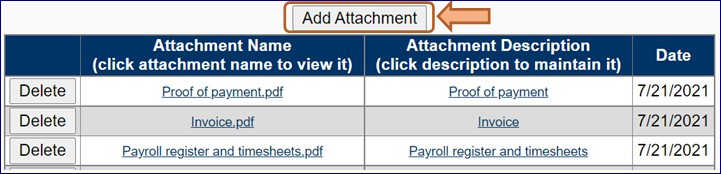
Step 8. Click “Save as Draft”
If you click “Submit” in error, email your WEM Fiscal Grants Specialist to return it to you.

Step 9. Proceed to How to Submit your Fiscal Report for next steps.
How to Submit your Fiscal Report
Step 1. Generate Reimbursement Request Form
There are two locations in Egrants where you can generate the form.
Step 1.1 Under Main Summary, click the PDF icon to access your Reimbursement Request Form
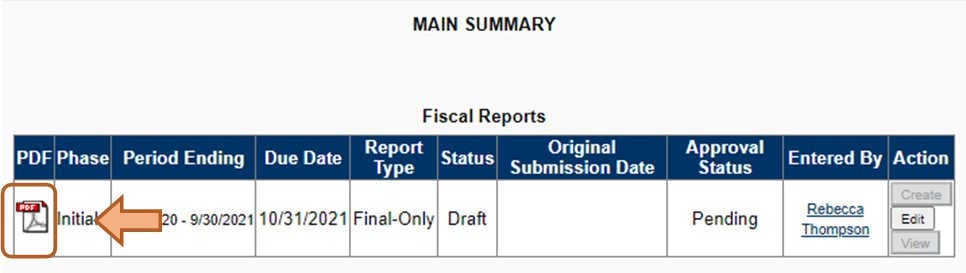
Step 1.2 Another link is available inside the Fiscal Report after it has been saved

Note: Any changes, including clicking into a field, will inactivate this link until it is “Saved as draft”. If the button is grey, you must click “Save as Draft”.

Step 2. Print form and sign as indicated
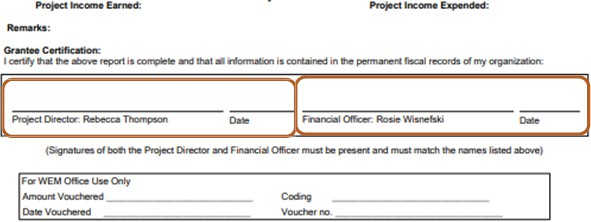
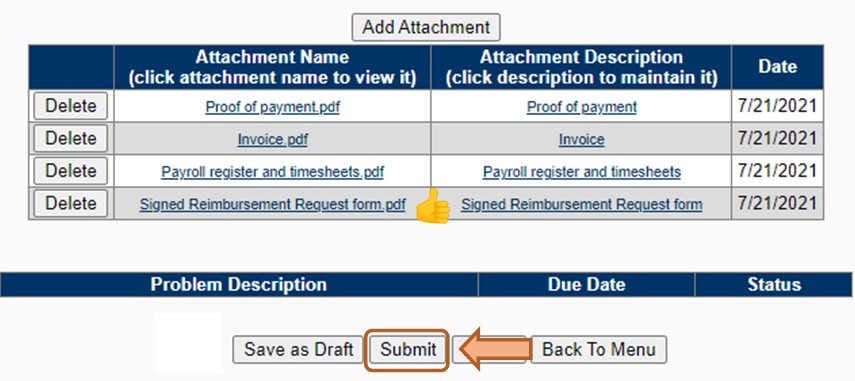
Step 3. Upload signed form into the Fiscal Report under Attachments
Step 3.1 Click on “Edit”

Step 3.2 Click on “Add Attachment”
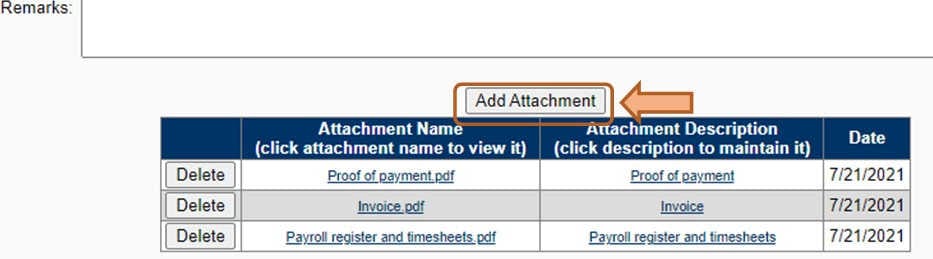
Step 3.3 Upload File (See Egrants User Guide for how to upload an attachment)
Step 4. Submit Fiscal Report