
Updated 04/23/2019
Wisconsin Emergency Management’s reference guide to create your user account, register your entity, and submit your notarized letter for the System for Award Management.
Three-Step Process
Table of Contents
- SAM.gov User Account Creation
- Creating Your User Account
- Personal Key
- Personal Information/Email Confirmation
- Navigation Tips
- Entity Registration
- Registering Your Entity
- Required Information to Complete Registration
- Core Data
- IRS Consent to Disclose Tax Information
- Financial Information
- Executive Compensation Questions
- Point(s) of Contact (POC) Information
- Completing Registration
- Additional Information
- Notarized Letter Completion and Mailing
- Notarized Letter Requirements
- Notarized Letter Instructions
- Letter Template
PLEASE NOTE THAT YOU MUST FULLY COMPLETE AND SUBMIT THE ENTITY REGISTRATION PRIOR TO MAILING YOUR NOTARIZED LETTER. IF YOU DO NOT YOUR NOTARIZED LETTER MAY BE REJECTED BY THE FEDERAL SERVICE DESK
Creating Your User Account
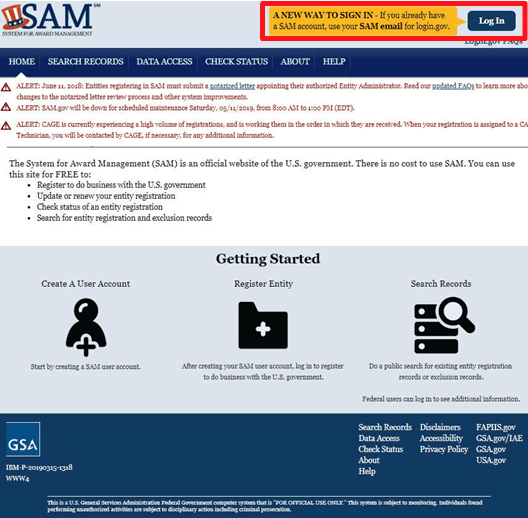
1. Go to https://SAM.gov in the upper right click on Log In.
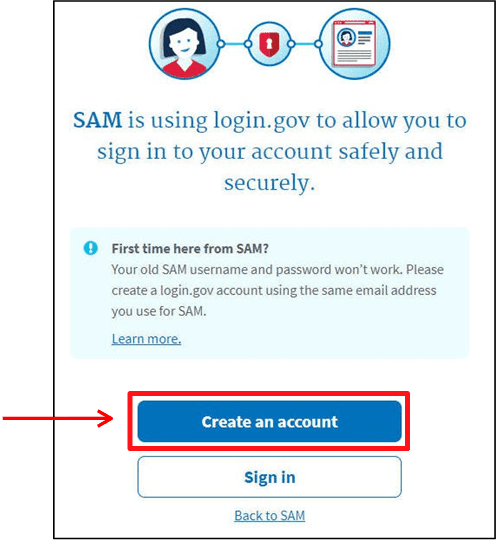
2. Click on Create an Account
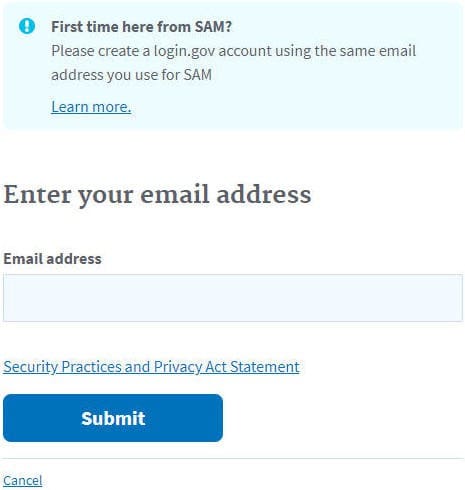
3. Enter your email address and click Submit.
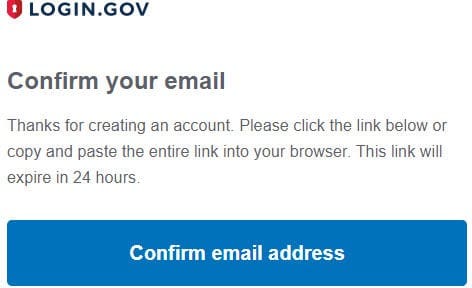
You will receive a confirmation email with a link to confirm your email address.
The link will expire after 24 hours.
4. In your confirmation email, click Confirm email address.
After following the link, you will be asked to create a password.
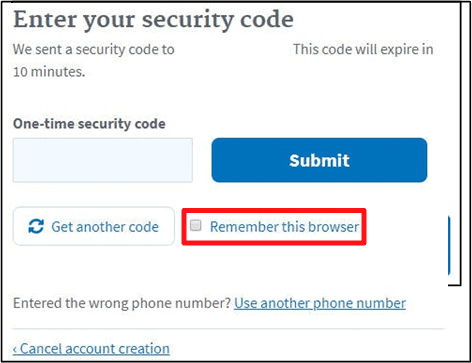
5. You will be asked how you would like to secure your account. Enter a phone number where your security code will be sent, either by text or phone call.
Before clicking Submit, checking the box titled “Remember this browser” will save this browser for 30 days. If you do not select this, you will need to enter a security code each time you log in.
Enter your security code and click Submit.
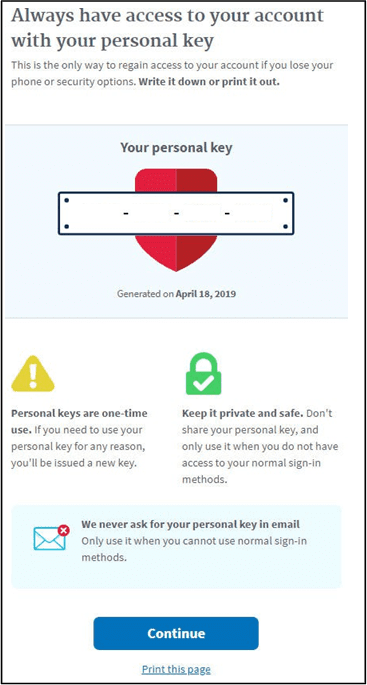
6. You will receive your personal key. You should save this key in case you ever need to unlock your account.
After clicking Continue, you will be asked to enter your personal key.
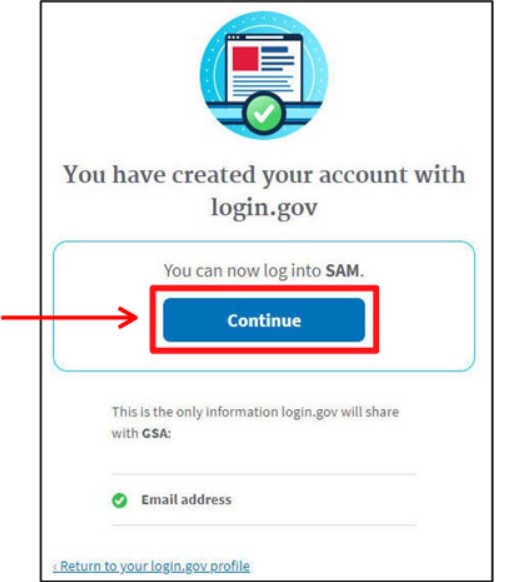
7. After entering your personal key, you should receive a screen confirming activation. Click Continue.
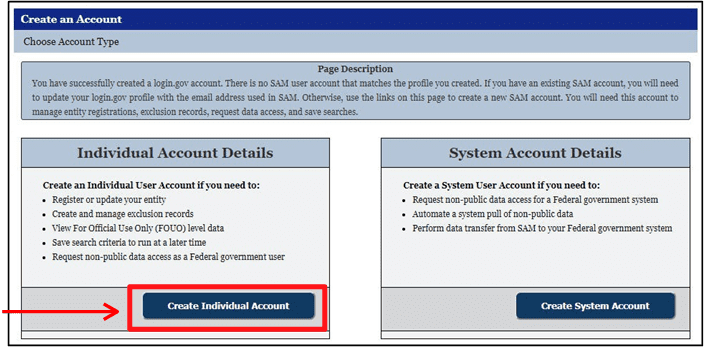
8. You will be asked what type of account you are creating.
Choose Create Individual Account.
If you do not, you will not be able to register your entity
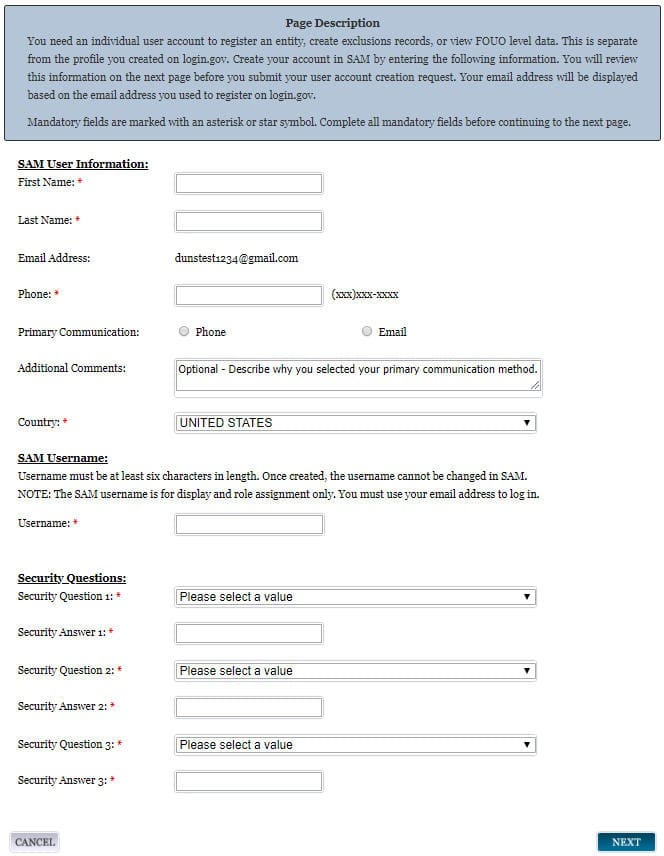
9. Complete all required sections, noted by the red asterisk.
After entering everything click Next. You will be asked to review and confirm the information. Once this is done, click Submit.
You will receive an email confirming your username. The username is only used for display and role assignment purposes. You will use your email to log in.
10. Go to https://SAM.gov and click Log In in the upper right.
Click on Sign In. After entering your email and password, you will be asked to agree to usage terms. Click Agree to continue.
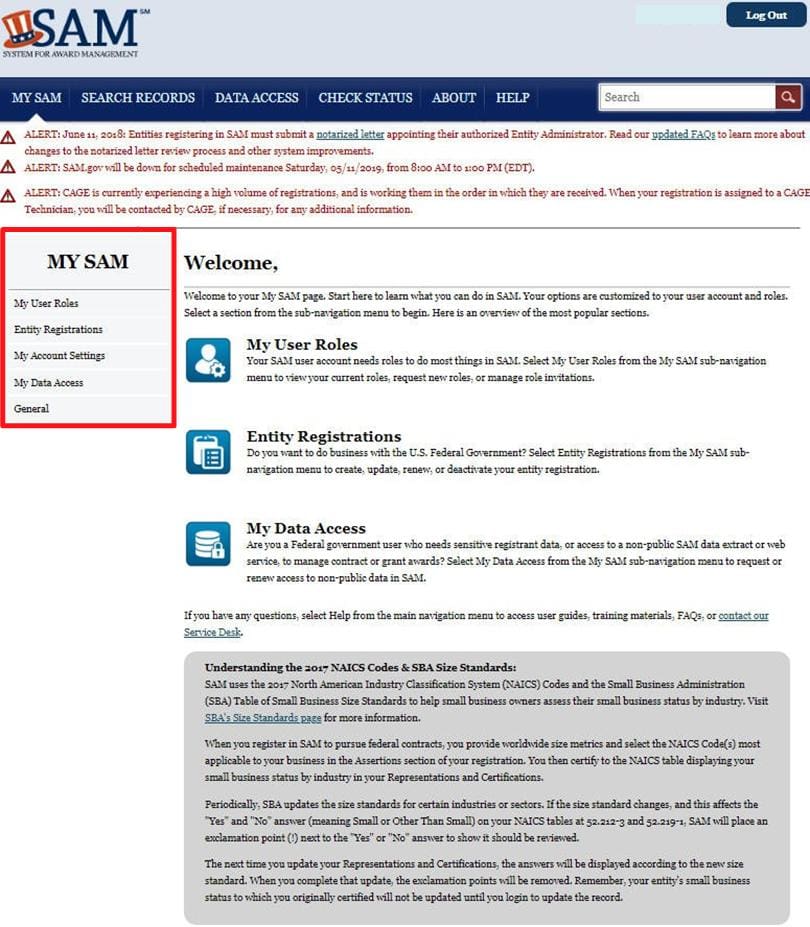
You should be taken to your MySAM page.
Navigation in the MySAM Portal
In your MySAM portal, there are five main areas you can navigate to:
- My User Roles
- Entity Registrations
- My Account Settings
- My Data Access
- General
The following pages will briefly detail each section.
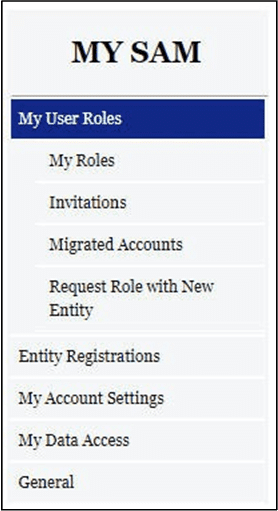
1. My User Roles
-My Roles allows you to search for an entity and see what your assigned roles and permissions are.
-Invitations is where pending invitations to join an entity or receive roles are located.
-Migrated Accounts only applies if you had previous accounts with old federal contracting and registration databases. New users can ignore this function.
–Request Role with New Entity allows you to request roles with an entity.
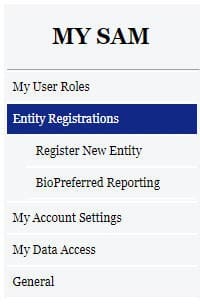
2. Entity Registrations
-Register New Entity allows you to register your organization/jurisdiction in the SAM system.
-BioPreferred Reporting is not applicable to our functions and can be ignored.
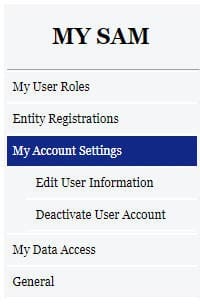
3. My Account Settings
-Edit User Information allows you to edit your personal information for your user account.
-Deactivate User Account allows you to deactivate your account if you wish.
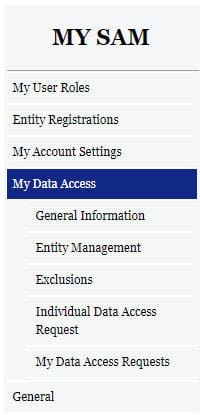
4. My Data Access
-General Information gives you some information on data access and whether you would need it.
-A majority of this section applies to Federal Government employees only and can be ignored.
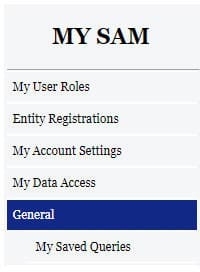
5. General
-My Saved Queries allows you to view previous searches and inquiries you have completed.
Registering Your Entity
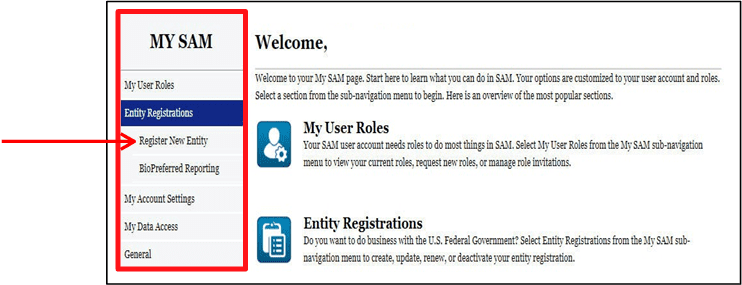
1. From your MySAM homepage, click on Entity Registrations on the left-hand side of your screen.
From the drop down menu, click on Register New Entity.
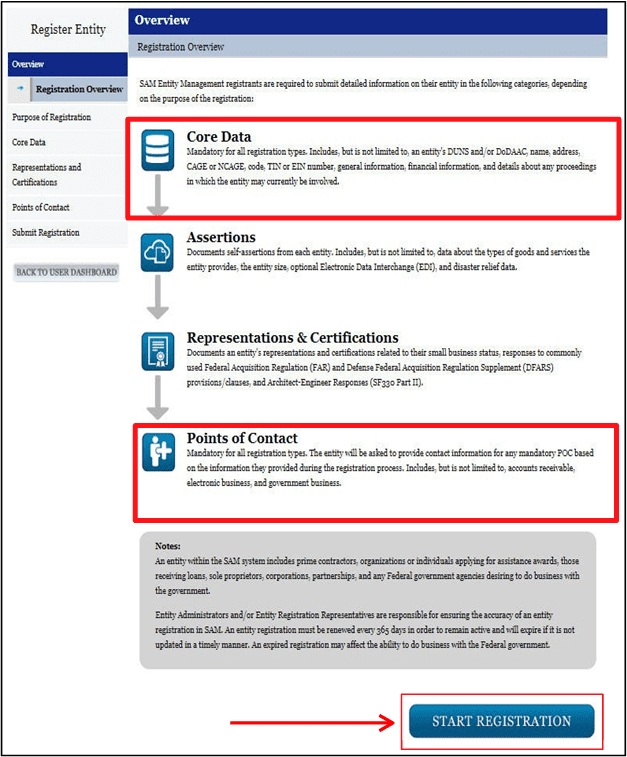
2. You will be brought to this screen. This details the information required for each section.
Note: If you are not interested in bidding on federal contracts, you only will be asked to complete the Core Data and Points of Contact sections.
If you are interested in bidding on federal contracts, you will need to complete all four sections.
Click Start Registration to begin.
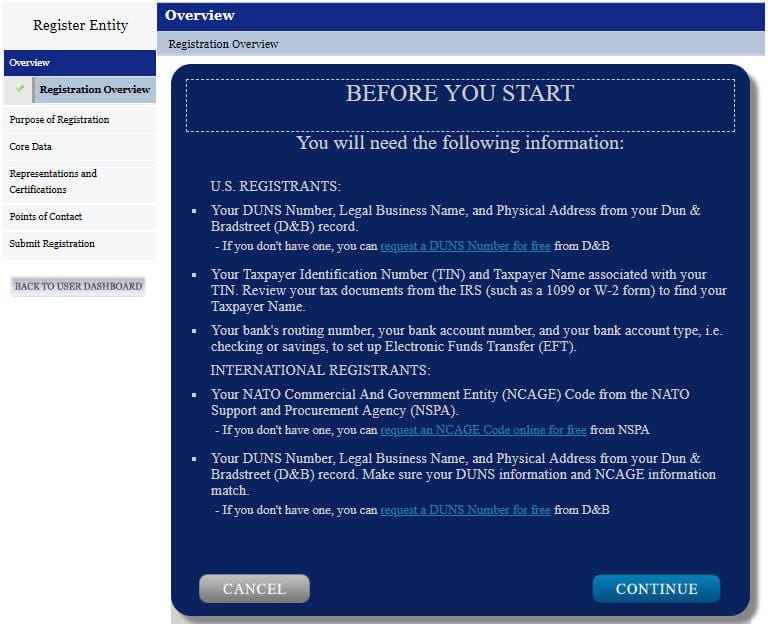
3. After clicking on Start Registration, a pop-up window will appear detailing the information required to complete registration.
You will need your entity’s:
-DUNS Number
-Legal Business Name
-Physical Address
-Taxpayer Identification Number (TIN/EIN)
-Bank routing and account number, and account type (checking/savings)
When you have this information, click Continue.
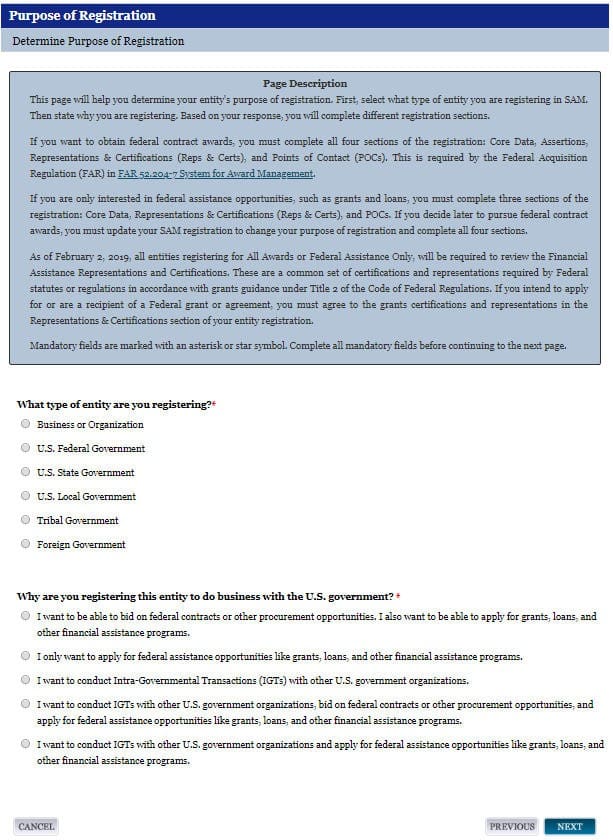
4. This section asks what type of entity and the reason for registration.
For question 1, select the most appropriate option.
For question 2, if you are not interested in bidding on federal contracts, select “I only want to apply for federal assistance opportunities like grants, loans, and other financial assistance programs.“
When you are ready, click Next
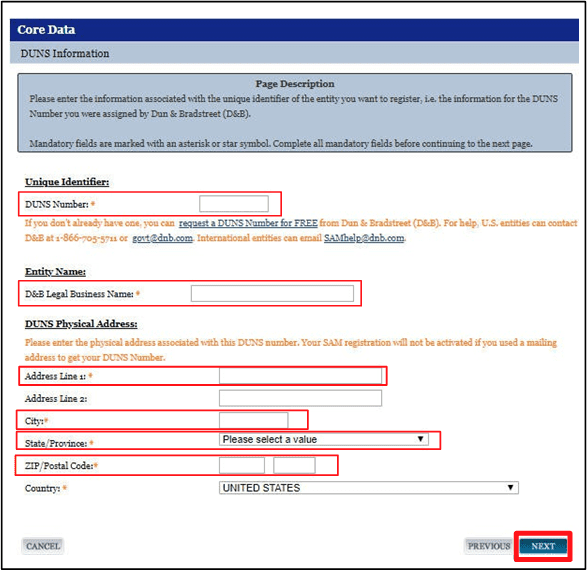
5. In this section you will enter your entity’s information as it appears in the DUNS Database. Enter the DUNS Number, Legal Business Name, and Physical Address.
Note: This information must exactly match as it appears in the DUNS Database.
Otherwise you will not be able to continue.
If you need to update your entity’s DUNS information or sign up for a DUNS number, please reference the Additional Information Section.
NOTE: Due to DUNS formatting, you may need to enter your DUNS Legal Business Name as:
Name, Town(ship) of
Once completed, click Next.
You will be asked to review and verify the information. After reviewing, click Save and Continue.
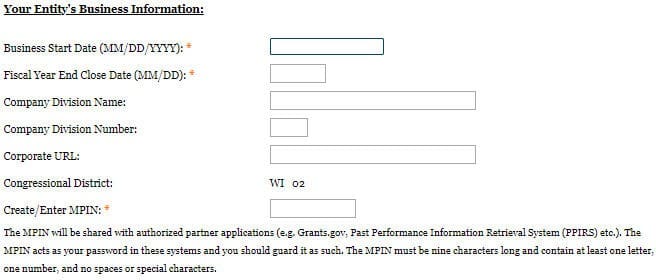
6. Next, you will enter your business information and mailing address.
You will be asked to create an MPIN, which acts as a password as you complete the registration.
The MPIN must be 9 characters containing at least one letter, one number, and no spaces or special characters.
* YOU WILL NEED TO ENTER THE MPIN LATER, IT IS ENCOURAGED TO WRITE IT DOWN.
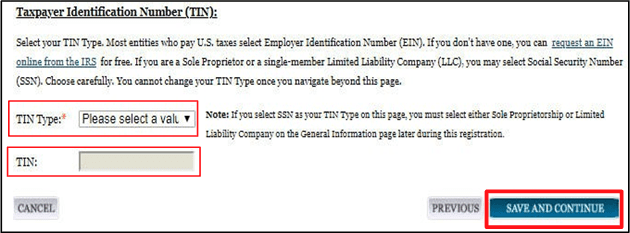
At the bottom of the page, enter your entity’sTaxpayer Identification Number (TIN/EIN)
Once you have completed everything, clickSave and Continue.
7. You will proceed to the IRS Consent to Disclose Tax Information to the SAM Program Office.
Enter the information as it appears on your most recent tax return. You will then need to enter your MPIN.
If you do not know this information, you should contact your local clerk, treasurer, or county director.
Once completed, click Save and Continue
NOTE: Once you complete the Consent to Disclose section, you are able to view the previous sections as you wish.

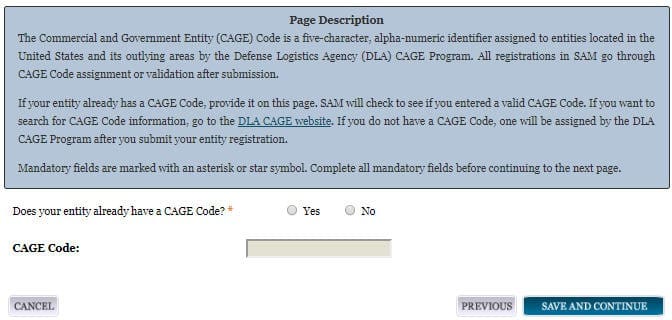
8. The following screen will ask if your entity already has a CAGE Code.
If you do not have a CAGE Code, one will be assigned once your SAM information has been approved and account activated by the Defense Logistics Agency (DLA).
Select Yes or No, and enter your CAGE Code, if applicable.
When completed, click Save and Continue.
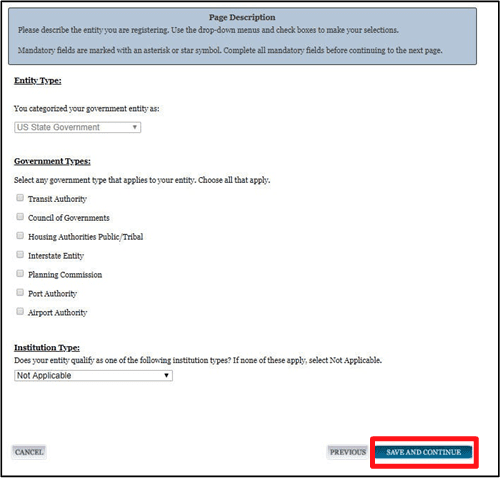
9. The General Information section questions will vary slightly based on the type of entity you are registering.
Please answer all questions as appropriate.
When completed, click Save and Continue.
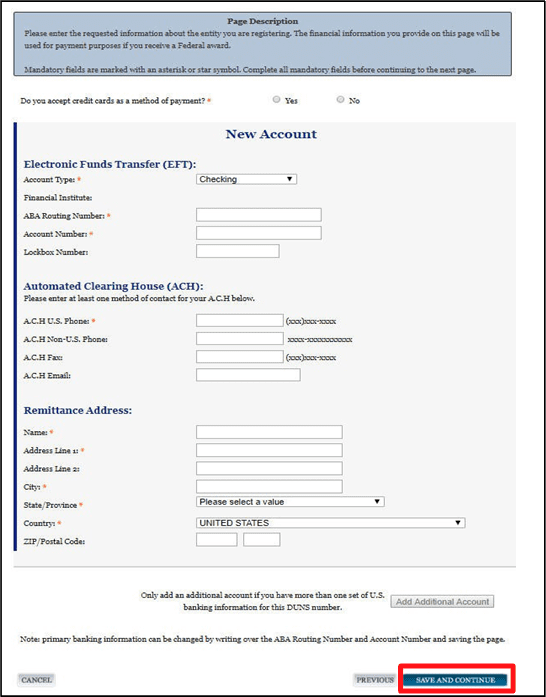
10. For the Financial Section, enter your entity’s bank account information. You will need your entity’s account type, routing number, and account number.
NOTE: For Public Assistance and Hazard Mitigation Grant Program grants, you will receive a paper check from WEM.
You will also enter the phone number for Automated Clearing House (ACH) and the address for the department on the bank account.
If you do not know this information, you should contact your financial institution.
Once completed, click Save and Continue.
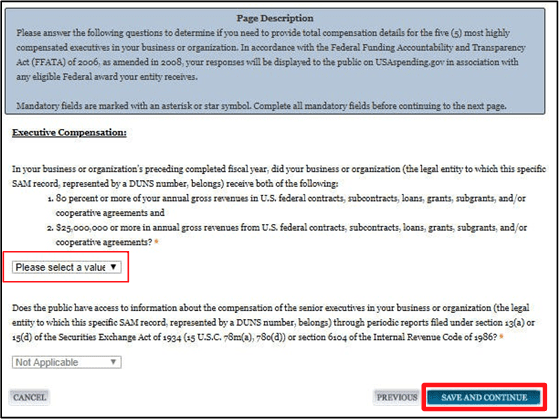
11. Executive Compensation Questions asks whether your entity has received a certain amount of annual gross revenue (pre-tax dollars) from the US Federal Government.
Please answer Yes or No. If Yes, please answer the second question.
When completed, click Save and Continue.
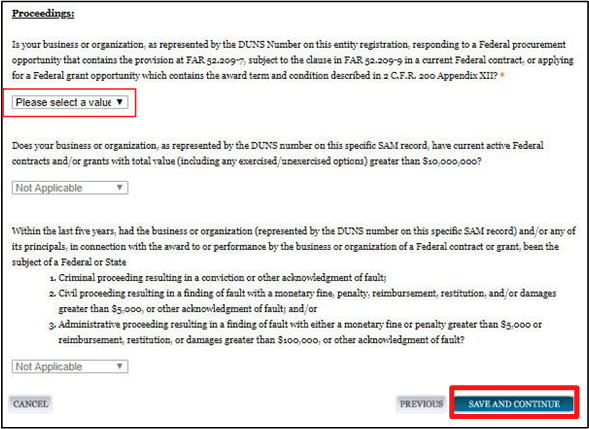
12. For Proceeding Questions section, the first question asks if you are applying for a Federal grant or contact opportunity in which the amount you are applying for exceeds $10,000,000.00.
Answer Yes or No to the best of your knowledge. If you answer Yes, answer the second question.
If the section question is Yes, answer the third question.
Once complete, click Save and Continue.
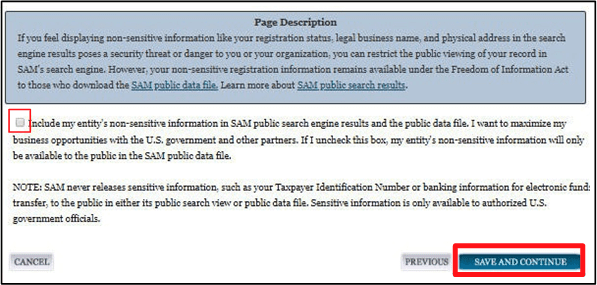
13. The SAM Search Authorization section allows you to decide if you want your non-sensitive information to appear in the SAM public search engine. This decision is solely up to you and your entity.
Check the box if you want your entity to appear in the search.
When completed, click Save and Continue.
You will be taken to a Review section. Please review all the information you have entered. Once completed, click Save and Continue.
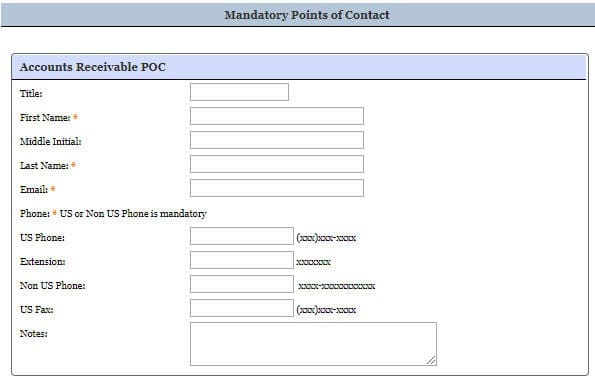
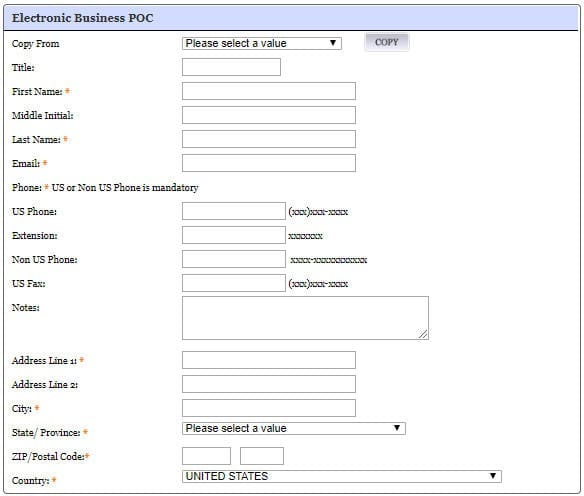
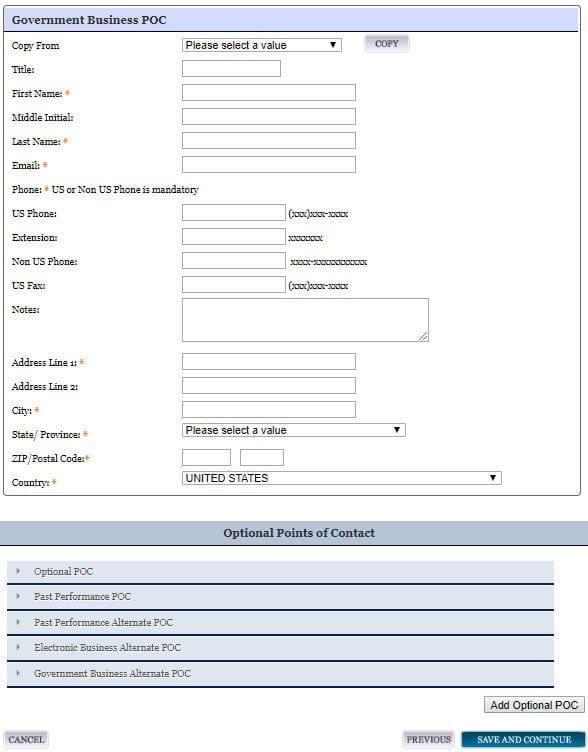
14. The Point of Contact (POC) Details section allows you to enter the contact information for three POCs:
Account Receivable, Electronic Business, and Government Business.
If there are not separate individual for each function, put the information in under Accounts Receivable, and click Copy at the top of the remaining sections after selecting Accounts Receivable from the drop down menu to the left.
When completed, click Save and Continue.
15. You will be brought to the Entity Review section. Here you will review all the information entered for your entity. After ensuring all information is correct, click Submit.
You will receive a confirmation email after submission.
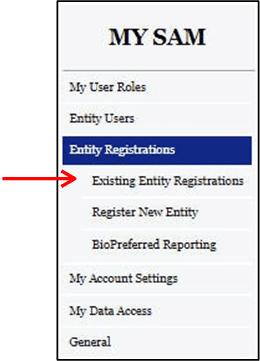
If you are not able to finish your registration, you can come back and complete it at a later time. At your MySAM Portal Homepage, click on Entity Registrations, then Existing Entity Registrations.
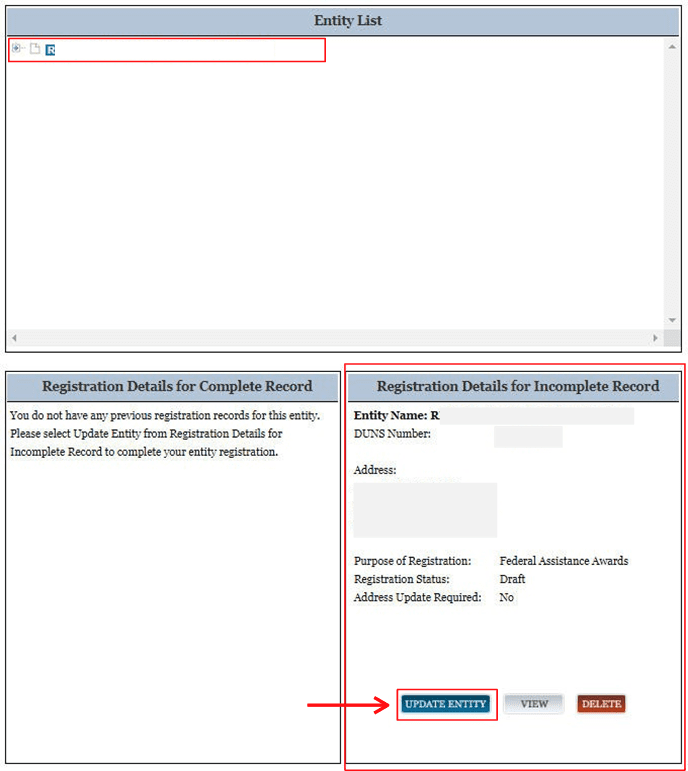
Click on your entity’s name under Entity List.
Your entity’s information will populate the Registration Details for Incomplete Record field.
Click on Update Entity to continue registration.
Additional Information
- If you need to update your entity’s information in DUNS Database, contact the DUNS Business Department at 866-705-5711. They will email you a link to a portal, where you will need to upload two accepted documents showing the new information. You will receive an email once the changes have been made in DUNS. You will then be able to begin/continue your SAM.gov registration.
- Once you submit your registration, please allow 10-14 business days for your SAM registration to become active. Monitor your email during this time as there may be some correspondence from the FSD or DLA.
- It is possible for the DLA to activate your registration and assign a CAGE Code prior to the FSD approving your notarized letter. You MUST still send and have an accepted notarized letter on file or the FSD may freeze your SAM account.
- Save frequently. If you are inactive for 30 minutes, SAM.gov will log you out, and you will lose any unsaved data.
- Your SAM registration needs to be renewed annually. Without an active SAM registration, your entity will not receive obligation packets or payments from WEM until it is renewed. We recommend putting a note on one’s calendar about 30 days prior to expiration.
- EVERYTHING RELATED TO SAM.gov IS FREE, and registration renewal will only ever be done on SAM.gov. If you receive emails taking you to other websites or asking for money, these emails could be phishing and should be deleted.
- If your registration is rejected, you can contact the DLA at 877-352-2255 for additional information.
- SAM.gov is a federally run website. WEM does not have administrative authority on SAM.gov, if you experience issues on the website you will need to contact the FSD (https://fsd.gov/fsd-gov/)
- If you need a DUNS Number (https://www.dnb.com/duns-number/get-a-duns.html)
Once you receive your CAGE Code, please email the CAGE Code and expiration date to: DMAWEMPublicAssistance@wisconsin.gov
Notarized Letter Instructions
All non-Federal entities registered in SAM.gov will be required to submit a notarized letter to the Federal Service Desk (FSD) designating an Entity Administrator. After the FSD receives your letter, you will receive an email stating if the letter has been approved or rejected. If rejected, it will provide the reasons why. You MUST have an approved notarized letter on file or the Federal Service Desk may place a hold on your SAM.gov account.
If the Entity Administrator ever changes, you will need to submit a new notarized letter with the new Entity Administrator’s information designating them as the new Entity Administrator.
- Complete the letter template found at the end of this guide and print. The following conditions are required for the letter:
- Be on your entity’s letterhead. (If you do not have letterhead, enter your entity’s legal business name and physical address at the top of the letter before printing)
- The Entity Administrator’s Contact Information must be the same information the individual used when creating their personal user account.
- The entity’s legal business name and physical address must exactly match the information in the DUNS Database associated with your DUNS number.
- Be signed by your entity’s President, CEO, or other authorized representative with signatory authority.
- Have the singing authority sign the completed letter in the presence of a notary.
- Mail the original completed, signed, and notarized letter within 60 days of submitting your entity’s registration on SAM.gov to:
FEDERAL SERVICE DESK
ATTN: SAM.GOV REGISTRATION PROCESSING
460 INDUSTRIAL BLVD
LONDON, KY 40741-7285 - This process only applies to new entity registrations. If you are renewing your SAM.gov registration and are the current Entity Administrator: Log into SAM.gov, Click “Register/Update Entity” and then “Complete Registrations”, verify/update any information required, and click submit.
SAM.gov NOTARIZED LETTER TEMPLATE
Template 1 – Single Entity (located in the U.S. or its outlying areas)
Background
The System for Award Management (SAM) is a computer system accessed by the Internet managed by the U.S. Government. Entities must have an active registration in SAM to do business with the U.S. Government. An “entity” is the company, business, or organization registering in SAM. Each entity is represented by a nine-digit unique entity identifier, the Data Universal Numbering System (DUNS®) Number as issued by Dun & Bradstreet.
Only individuals who are authorized to represent a particular entity, or individuals representing themselves as an entity, may register an entity in SAM. Accessing or using SAM, or information contained therein, for any unauthorized or illegal purposes, may have civil and criminal penalties, and may negatively impact the status of the SAM registration maintained for the entity.
Instructions to Entity
- Single Entity. Use this template to formally appoint an Entity Administrator for 1) a single, domestic entity located in the U.S. or its outlying areas, or 2) a single, international entity that uses banking information from a U.S. financial institution in their SAM entity registration.
- Complete the template. Fill in the blanks. Enter the highlighted information on the next two pages. Do not include this instruction page in your letter.
- Print the letter on your entity’s letterhead. If you don’t have letterhead, enter your entity’s legal business name and physical address at the top of the letter before printing.
- Sign the completed letter in the presence of the notary. Make sure the person who signs the letter is someone with signatory authority, i.e. who can make commitments on behalf of the entity like an executive, officer, partner, or other authorized signatory. The notary will confirm the signatory’s identity in accordance with your state’s notary procedures.
- Mail the completed, signed, notarized letter. Your letter will be reviewed for completeness upon receipt at the Federal Service Desk at:
FEDERAL SERVICE DESK
ATTN: SAM.GOV REGISTRATION PROCESSING
460 INDUSTRIAL BLVD
LONDON, KY 40741-7285
UNITED STATES OF AMERICA
If incomplete or incorrect, you will be contacted. Your registration will not be activated until an approved letter is on file.
End of instructions. Complete the template that follows.
[PRINT LETTER ON ENTITY LETTERHEAD]
[Insert Date]
FEDERAL SERVICE DESK
ATTN: SAM.GOV REGISTRATION PROCESSING
460 INDUSTRIAL BLVD
LONDON, KY 40741-7285
UNITED STATES OF AMERICA
SUBJECT: Information Required to Activate SAM Entity Registration
Purpose of Letter
The purpose of this letter is to formally appoint an Entity Administrator for the named Entity and to attest to the accuracy of the information contained in the entity registration.
Designation of Entity Administrator
I, [Insert Name and Title of Signatory], the below signed individual, hereby confirm that the appointed Entity Administrator is an authorized officer, agent, or representative of the Entity. This letter authorizes the appointed Entity Administrator to manage the Entity’s registration record, its associated users, and their roles to the Entity, in the System for Award Management (SAM).
Entity Covered by this Letter
DUNS® Number:
Legal Business Name:
Physical Address:
Entity Administrator Contact Information
Full Name:
Phone Number:
Email Address:
*The Entity Administrator must have an individual user account in SAM associated with the email address listed.
Account Administration Preference (ONLY CHOOSE ONE)
You must choose ONE of the two following statements by checking the applicable box. Remember, there is no cost to register in SAM — it is free. However, if you choose to have a third-party agent administer your SAM registration, with or without an associated fee, you must check the Third-Party Agent Designation box below.
☐ Self-Administration Confirmation
For the purpose of registering with the United States Government through the online System for Award Management (SAM), I do not authorize any third party to act on behalf of the Entity listed above. I have checked the Self-Administration Confirmation box to indicate that the designated Entity Administrator is not a third-party agent.
☐ Third-Party Agent Designation
For the purpose of registering with the United States Government through the online System for Award Management (SAM), I do hereby authorize [insert full name, phone number, address, and email address of the Third-Party Agent] (Designated Third-Party Agent) to act on behalf of the Entity listed above. This authorization permits the Designated Third-Party Agent to conduct all normal, common business functions within SAM while binding the signatory to all actions conducted and representations made as a result of authorization granted herein. I have checked the Third-Party Agent Designation box and completed the above information to indicate that the designated Entity Administrator is a third-party agent.
Attestation
I, the below-signed, attest to the following:
- All information contained in this letter is complete and accurate.
- The designated Entity Administrator listed above has an individual SAM User Account created with the email address provided in this letter.
- The banking information provided for Electronic Funds Transfer on the Financial Information Page in the SAM.gov registration for the Entity above is correct and accurate.
Respectfully,
[Insert Full Name of Signatory]
[Insert Title of Signatory, e.g. Director of Contracting, Managing Partner, Vice President for Research, etc.]
[Insert Email of Signatory]
[Insert Entity Legal Business Name]
[Insert Entity Physical Address]
[PRINT LETTER ON ENTITY LETTERHEAD]
TO BE COMPLETED BY NOTARY
(in accordance with State notary requirements)
State of
County of
This instrument was acknowledged before me this day of (month), (year), by (name of officer or agent, title or officer or agent) of (name of entity).
Personally Known
Produced Identification
Type of ID and Number on ID
(Seal)
Signature of Notary
Name of Notary
(Typed, Stamped or Printed)
Notary Public, State of